ISRDDN – That’s wrong – no, that’s new

I’ve just started using a new system, and I’ve been looking around.

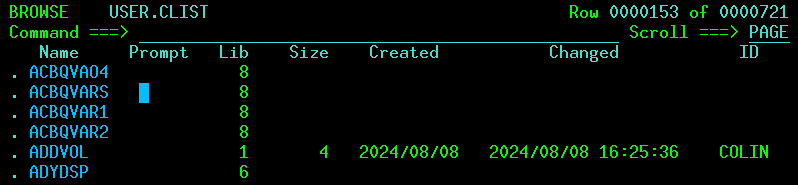
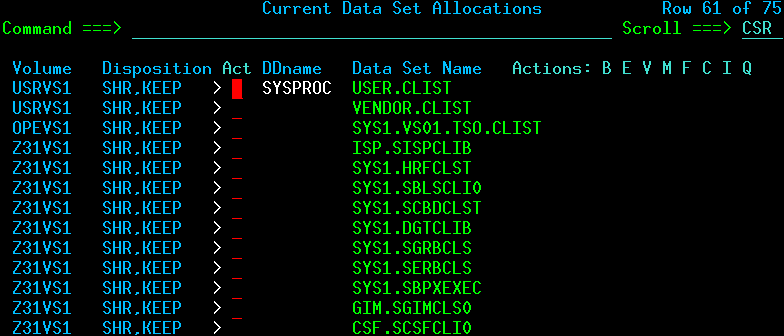
I used ISRDDN to display the allocations for ISPF. It gives

if I put B in front of USER.CLIST I get

When I browse the top member, I get member data set SYS1.DGTCLIB(ACBQVAO4). This is not in USER.CLIST. What is going on ?

If you look at the output of USER.CLIST is has Lib:8. This means the 8th library in the list of SYSPROC.

Member ADDVOL is in library 1 which really is USER.CLIST

if you browse any other data set under the SYSPROC it has

without the Lib.

Now I understand what is happening, I think it is pretty nifty!

Updating the I/O configuration for zD&T (zPDT)

Initial comments

As part of the move from the ADCD provided systems to the standard image, I found that existing device map with not migrated to the new system. This challenge gave me the opportunity to learn about configuring the I/O subsystem and Hardware Configuration Definition (HCD) for ZD&T, zPDT and the standard image.

Concepts

The I/O configuration is pointed to by the LOAD member in SYS1.IPLPARM or SYS0.IPLPARM

For example

*---+----1----+----2----+----3----+-
IODF 05 PROV DEFAULT 00
...

Where the columns are important. This would use dataset PROV.IODF05 and look for system DEFAULT.

The names of the production IODFs are id.IODFnn where nn is 00 to 99

You can display the currently active HCD by using operator command

Activate test

To configure the HCD you use ISPF. On my system to get to the HCD application you need option 12;2

  • 12 z/OS System z/OS system programmer applications
  • 2 HCD HCD I/O configuration

When working with HCD you cannot update the currently active, you use a working dataset, and create a new IODF image at the end.

With input fields ending in a +, you can use PF4 to display the available options.

Basic configuration

You define a device range, for example 0700 for 16 units; and the device type 3277.
For these to be visible in z/OS the devices must be connected to an operating system definition. I spent many an hour trying to work out why my newly configured DASD was not in my z/OS system – it was because I had not connected the devices.

Print the configuration

Once you have made changes, you should print the configuration and check they are as you expect, for example the devices are connected to the operating system.

//IBMHCD JOB MSGCLASS=H 
//GCREP EXEC PGM=CBDMGHCP, 
// PARM='REPORT,CSMEN,,,,,00' 
//HCDIODFS DD DISP=SHR,DSN=PROV.IODF06 
//* DIODFS DD DSN=PROV.IODF05,DISP=SHR 
//HCDRPT DD SYSOUT=H, 
//    DCB=(RECFM=FBA,LRECL=200,BLKSIZE=6400) 
//HCDMLOG DD SYSOUT=H, 
//   DCB=(RECFM=FBA,LRECL=200,BLKSIZE=6400) 

The output is like

                                        DEVICE SUMMARY REPORT             
--- DEVICE --- DEVICE
NUMBER,RANGE TYPE-MODEL ATTACHING CONTROL UNITS
______________ _____________ |____|____|____|____|____|____|____|____|
0700,64 3277-2
0A80,64 3390
0AA0,64 3390
...
OPERATING SYSTEM SUMMARY REPORT
OPERATING D/R
SYSTEM ID TYPE GEN DESCRIPTION OS I
_________ ________ ___ ________________________________ ____
DEFAULT MVS Default OS Config
MVS DEVICE REPORT
OPERATING SYSTEM CONFIGURATION ID: DEFAULT
DEV#,RANGE TYPE-MODEL SS BASE UCB-TYPE ...
__________ _____________ __ ____ ________ ...
0700,64 3277-2 0 12001009 ...
0AA0,64 3390 0 3030200F ...

and note device range 0A80 for 64 is not in the DEFAULT system configuration. At IPL this range of devices will not be there.

What is my current configuration?

The operator command ACTIVATE TEST gives

activate test                                                           
...                             
IEF196I IEF285I   PROV.IODF05                                  KEPT     
IEF196I IEF285I   VOL SER NOS= OPEVS1.                                  
IEF196I IEF285I   PROV.IODF05                                  KEPT     
IEF196I IEF285I   VOL SER NOS= OPEVS1.                                  

Configuring the HCD

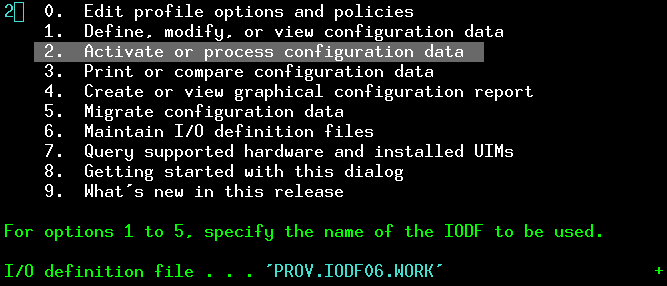
ISPF 12;2 gave me

                           Hardware Configuration                   
                                                                    
Select one of the following.                                        
                                                                    
1   0.  Edit profile options and policies                           
    1.  Define, modify, or view configuration data                  
    2.  Activate or process configuration data                      
    3.  Print or compare configuration data                         
    4.  Create or view graphical configuration report               
    5.  Migrate configuration data                                  
    6.  Maintain I/O definition files                               
    7.  Query supported hardware and installed UIMs                 
    8.  Getting started with this dialog                            
    9.  What's new in this release                                  
                                                                    
For options 1 to 5, specify the name of the IODF to be used.        
                                                                    
I/O definition file . . . 'PROV.IODF04'____                   +  
  • At the bottom, I/O Definition file – put the cursor in the input field and press PF4, to display the available files.
  • Select 1 Define, modify, or view configuration data.

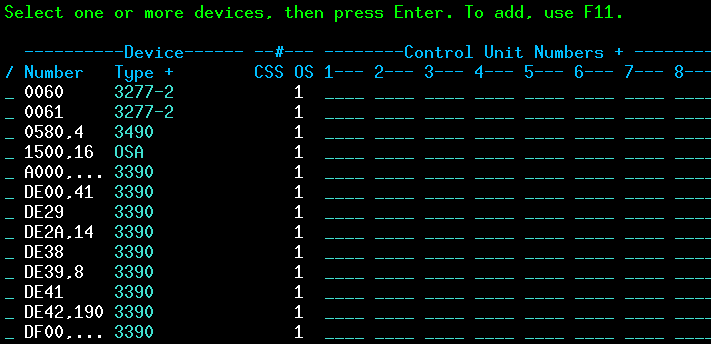
This gives lines with

  • The start address, and count. For example DE00, for 41 ( so address range DE00 to DE40)
  • The device type: 3390
  • OS 1… connected to the 1st system definition. If this is blank it is not connected,
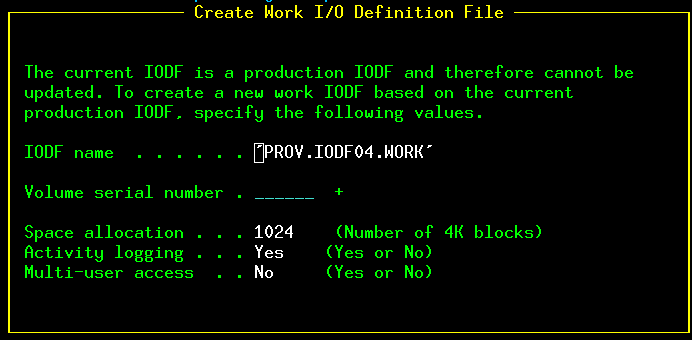
  • Press PF11 to add a device (or put D in the line command for an entry to delete an entry). This may display

This is creating a work file, so you do not update the currently active one. Specify the volser

You will get

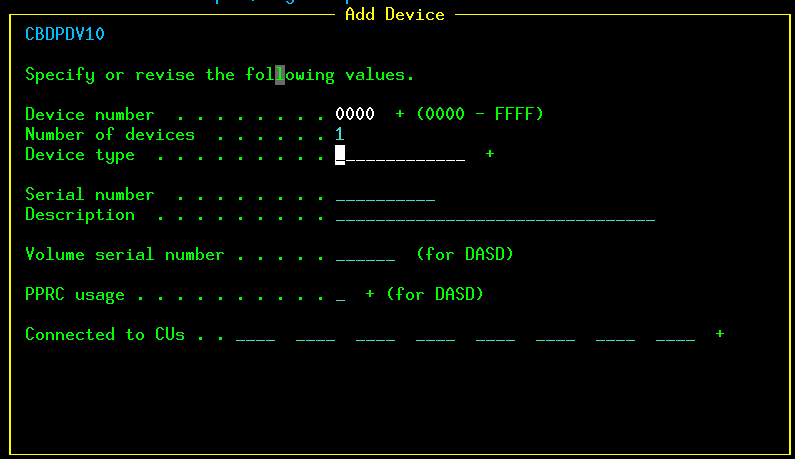
Specify an address, and a count of addresses. Put the cursor in the Device type input file and press PF4 ( as indicated by the + sign at the end of the field).

This gives

This is the list of systems you can connect the I/O devices to. Put a / in front of the config id (DEFAULT) and press enter. This gives

Select 1 because you want to connect the device to the DEFAULT system.

This gives

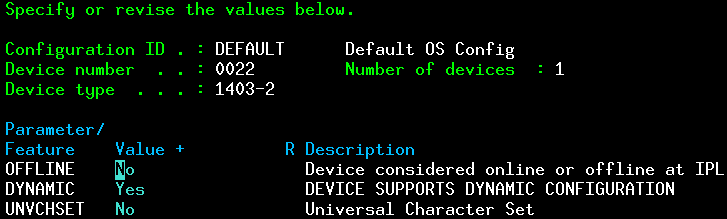
You can customise the options. Each device type has different options. Press enter till you get back to the I/O Device List (with your address range added).

Generate the production IOCD

From the initial panel select option 2. Activate or process configuration data, and specify the work dataset.

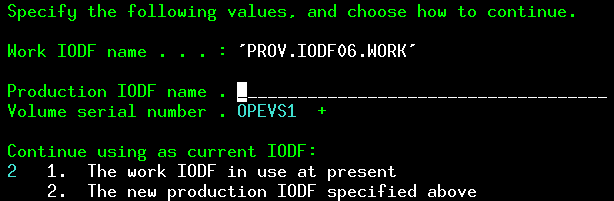
The I/O definition dataset name at the bottom should be the one you are currently working with. You can use PF4 to display the datasets names you have worked with.

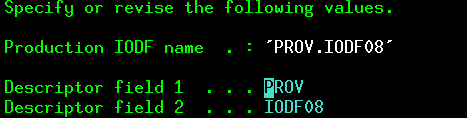
Enter a new data set name, such as PROD.IODF08, and the volume serial. (I think this is the same volume as your SYSn.IPLPARM dataset.

Press enter for

Print the IODF using the JCL above.

Update your LOADXX member with the new number, and when you next IPL the changes should be active. ( I created a new LOADYY member, so I could go back to the old IODF if I had problems.)

What systems and consoles are defined?

You can define consoles in the IOCD – you still need to have the z/OS CONSOLE definition.

From the HCD main panel, select

  • 1. Define, modify, or view configuration data
  • 1. Operating system configurations

if you select the default configiguration with / and press enter it gives

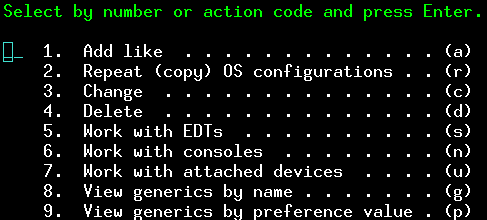
You can either select by number, or note the letter at the end of the line. Work with console -> n.

You can specify this command (‘n’) in

to go directly to the console definitions.

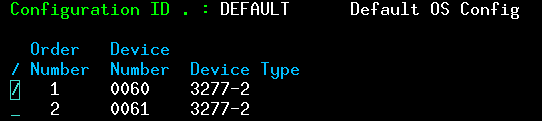
This gives

so you can see there are two console defined. One at address 0060, the other at address 0061.

The old zD&T IODF

The IODF from the ZD&T IODF is below. Ive simplified it – replacing 0700,1; 0701,1; 0702,1 etc with 0700,64.

----------Device------ --#--- --------Control Unit Numbers + --------      

 / Number   Type +       CSS OS 1---
 _ 000C     2540                 ____
 _ 000C     2540R-1           1  ____
 _ 000E,2   1403-N1           1  ____
 _ 0120     3380             64  ____
 _ 01C0,64  3390                 ____
 _ 0240,32  3380                 ____
 _ 0260,32  3390                 ____
 _ 0300,25  3390              1  0300
 _ 0400,16  OSA               1  ____
 _ 0550,16  3420-8            1  ____
 _ 0560,16  3480              1  ____
 _ 0580,16  3490              1  0580
 _ 0590,16  3590              1  0590
 _ 0600,16  3390              1  ____
 _ 0900     3270-X           32  ____
 _ 0A80     3390             64  ____
 _ 0E20     CTC               4  ____
 _ 0E40     CTC               4  0E40
 _ 1A00,256 3390              1  ____
 _ 2A00,256 3390              1  ____
 _ 3A00,256 3390              1  ____

Do I really want to restore these datasets? – let me check first.

I needed to restore a product which had shipped files in ADRDSSU BACKUP format.

Before following the instructions and creating lots of files, I thought it would be useful to see what’s going to happen. You can do this by specifying

//S2 EXEC PGM=ADRDSSU,REGION=0M,PARM='TYPRUN=NORUN'

This shows you what will happen, but does not do any of the work.

My JCL was originally

//S1      EXEC PGM=AMATERSE,PARM=UNPACK 
//SYSPRINT DD SYSOUT=*
//SYSUT1 DD DISP=SHR,DSN=COLIN.PROD.TRS
//SYSUT2 DD DSN=&&TEMP,SPACE=(CYL,(500,500)),DISP=(,PASS)
//*

//S2 EXEC PGM=ADRDSSU,REGION=0M,PARM='TYPRUN=NORUN'
//SYSPRINT DD SYSOUT=*
//DD1 DD DISP=SHR,DSN=*.S1.SYSUT2
//SYSIN DD *
RESTORE -
IMPORT -
INDDNAME(DD1) -
CANCELERROR -
DATASET(INCLUDE(**)) -
RENAMEU( -
(**.PRODANLC,COLIN.PRODANLC) -
(**.PRODANLE,COLIN.PRODANLE) -

...

The output had

ADR489I (001)-TDLOG(01), DATA SET COLIN.PRODANLC WAS SELECTED         
ADR489I (001)-TDLOG(01), DATA SET COLIN.PRODANLE WAS SELECTED


This would create datasets like COLIN.PRODANLC which I did not want to use.
I wanted to include the version and release so I used

(**.PRODANLC,COLIN.PROD321.PRODANLC) - 
(**.PRODANLE,COLIN.PROD321.PRODANLE) -

and my files came out COLIN.PROD321.PRODANLC etc.

This saved me a lot of time – having to delete many data sets with the wrong name.

Whoops – I should have defined a security profile.

When I restored from the backup, the output included

ADR755W (001)-PROTD(01), SOURCE DATA SET BETA.PROD.OUT.PRODANLC WAS GENERICALLY PROTECTED. THE TARGET DATA SET COLIN.PROD321.PRODANLC IS NOT PROTECTED BY ANY PROFILE                                        

I defined a RACF profile

tso addsd 'COLIN.PROD321.**' uacc(NONE)  

and when I retested it I did not get the ADR755W messages.

You should define the profile before you restore the files. If you do not, there is a small chance that someone could change the unprotected file. If you define the profile first – the file is protected from the moment it is created.

My Unix Services shell is yucky – how do I change it?

You can get into Unix Services from TSO OMVS, or you can use SSH to get directly into a Unix Services session (without access to ISPF). I was interested in using SSH. At first glance it works just like a Linux command window.

My first experience was the keys did not behave as I expected, and how can I change this.

Why do I care which shell I am using?

On Linux I can type the first part of a file name, press the tab key, and it either completes the name of the file (if there was only one) or lists the names of the possible matching files. This is known as autocomplete.

I tried this in an SSH session on z/OS, and this did not work. I was using the default shell, which does not have this support. I needed to use the bash shell or the zsh shell. Note the zsh was developed on Unix and ported to z/OS, it is not a z/OS special.

How do I use a different shell?

The first question is, “is the shell available on my system?”, to which the answer is maybe.

  • z/OS ships with the default shell in /bin/sh.
  • You can get a free version of bash for z/OS. My ADCD based system does not have Bash pre-installed. I believe you can get it for free from Rocket.
  • My ADCD system has zsh installed (but not configured).

Your default shell

This is set in the in your RACF OMVS segment PROGRAM field . To display it, use

TSO LU COLIN OMVS

This gave me

OMVS INFORMATION
----------------
UID= 0000990021
HOME= /u/colin
PROGRAM= /bin/sh
...

Once you logon to your shell various profiles may be executed if they exist for example for the default shell

  • /etc/profile and ~/.profile where ~ is your default home directory (see HOME= in the output of the LU command, above;

Typically the profile script will set the environment variable SHELL.
I put the following in my ~/.profile so my SSH sessions get the zsh shell.

#!/bin/sh 

if [[ -z "$SSH_CLIENT" ]]
then
# dummy
xxx="$SSH_CLIENT"
else
# SSH_CLIENT has a value ... so an SSH terminal
#cho "using the zsh shell"
zsh="/bin/zsh"
echo "shell $SHELL zsh $zsh"
if [[ $SHELL != $zsh ]]
then
echo "using the zsh shell"
export SHELL="$zsh"
exec "$zsh"
fi
fi


zsh is documented in the UNIX System Services Command Reference. This is a big book, so I extracted the section of zsh using

pdftk USSCommand_v3r1.pdf cat 899-1071 output zsh.pdf

zsh education

I found https://thevaluable.dev/zsh-completion-guide-examples/ was a good source of information about zsh.

If zsh has been installed properly you should have an environment variable $ZDOTDIR defined. If this is missing then $HOME is used instead.

There are files

  • $ZDOTDIR/.zshenv
  • $ZDOTDIR/.zprofile
  • $ZDOTDIR/.zshrc
  • $ZDOTDIR/.zlogin
  • $ZDOTDIR/.zlogout

Which should contain configuration information

There are comment on the IBM community about the poor documention of zsh on z/OS, an how you can get started. It gives hints on setting up colours etc.

The IBM documentation says

  • Commands are first read from /etc/zshenv; this cannot be overridden. …
  • Commands are then read from $ZDOTDIR/.zshenv.
    • If the shell is a login shell, commands are read from /etc/zprofile and then $ZDOTDIR/.zprofile.
    • Then, if the shell is interactive, commands are read from /etc/zshrc and then $ZDOTDIR/.zshrc.
    • Finally, if the shell is a login shell, /etc/zlogin and $ZDOTDIR/.zlogin are read.
  • When a login shell exits, the files $ZDOTDIR/.zlogout and then /etc/zlogout are read. This happens with either an explicit exit via the exit or logout commands, or an implicit exit by reading end-of-file from the terminal

If you start with the system shell, then invoke the zsf shell, the PATH and LIBPATH statements etc will be inherited from the system shell.
If you go directly to the zsh you’ll need to set up a profile based on the system profile. ( or just invoke the existing profile).

You may want to set up a profile to set the command prompt for example the default is

$LOGNAME:$PWD:

You can set it with

export prompt='%n:%/'

to give

COLIN:/u/colin

Changing what keys do … getting the delete key to work as expected

This took a while to understand see Linux mapping the keyboard and on z/OS SSH.

Installing useful commands

I installed zopen. zopen provides lots of Unix-like packages on z/OS. Its home page says

The zopen community is here to provide popular Open Source tools and to encourage z/OS Open Source tools development. We currently host 200+ z/OS Open Source projects and we’re looking for more!

See installing zopen. I then installed the less command , and openssl. See installing packages.

Oh s**T, I cannot boot Ubuntu – I’ve lost my gnome

The problem

I installed some software on Ubuntu, which I had not realised was very back level. It prompted and said

The following packages will be REMOVED:
fuse3 gnome-remote-desktop gnome-shell-extension-desktop-icons-ng gvfs-fuse nautilus
ntfs-3g shfs ubuntu-desktop-minimal ubuntu-session xdg-desktop-portal xdg-desktop-portal-gnome xdg-desktop-portal-gtk

Do you want to continue? [Y/n]

I blindly replied y – as I always do.
The next IPL failed to start, and left me in a command window with strange messages.

The cure

I rebooted, and selected a kernel with recovery mode.
This displayed a menu with

resume   Resume normal boot
...
network Enable networking
root Drop into root shell mode
...

I selected network. This gave a window with

Continuing will remount your / filesystem in read/write mode.  Do you wish to continue?

I clicked on <yes> .

Some status messages were displayed at the bottom of the screen, and it returned to the original menu.

At the menu I selected root. This gave me a command window with access to the network.

The magic command to restore Gnome was

sudo apt install gnome-desktop

This installed various packages.

I then issued

sudo shutdown now -r

and my Ubuntu came up as if nothing had happened.

Lessons learned

After I had recovered my Ubuntu, I remember doing this recovery before. Unfortunately I had written the recovery instructions in a file under my userid, but I could not find them during recovery. The wise thing to do is print off the instructions and keep a copy in my desk – or blog them as I’ve just done.

zopen: installing packages

zopen provides lots of Unix-like packages on z/OS. Its home page says

The zopen community is here to provide popular Open Source tools and to encourage z/OS Open Source tools development. We currently host 200+ z/OS Open Source projects and we’re looking for more!

I wanted to install some packages to make my SSH shell on z/OS look like the Linux shell I know and love. This was easy, but not entirely straight forward.

You can list all the packages available using

zopen query –list

Install less

less pages through the content of a file.

I used

zopen install less

Once I had installed it and tried to use it, I got

WARNING: terminal is not fully functional
Press RETURN to continue 

I had to install ncurses, a programming library for creating textual user interfaces (TUIs) that work across a wide variety of terminals.

zopen install ncurses

and it worked.

Not for humans, but for search engines z/OS Unix messages

WARNING: terminal is not fully functional Press RETURN to continue

After I installed zopen:less I got this message.

Action: use zopen install ncurses

ssl.SSLCertVerificationError: [SSL: CERTIFICATE_VERIFY_FAILED] certificate verify failed: unable to get local issuer certificate (_ssl.c:1019)

urllib.error.URLError: <urlopen error [SSL: CERTIFICATE_VERIFY_FAILED] certificate verify failed: unable to get local issuer certificate (_ssl.c:1019)

I was doing Python pip install and got these messages. I had to bodge a certificate package from Linux. See here.

Which certificates does Python install (PIP) use on z/OS?

Using the Python pip install … command I was getting error message

ssl.SSLCertVerificationError: [SSL: CERTIFICATE_VERIFY_FAILED] certificate verify failed: unable to get local issuer certificate (_ssl.c:1019)
...
urllib.error.URLError: <urlopen error [SSL: CERTIFICATE_VERIFY_FAILED] certificate verify failed: unable to get local issuer certificate (_ssl.c:1019)

On Discord, someone said the ca-certificates package seems to be missing on z/OS, I give a possible solution below.

How I fixed it see Upload the certificate from Linux.

I used Wireshark to monitor the web sites being used, and z/OS could not validate the certificate sent to it. It had a signing chain of 3 Certificate Authorities.
I tried capturing the certificates using openssl s_client…, but they didn’t work.

There is a pip option –trusted-host github.com –trusted-host 20.26.156.215 which says ignore the certificate validation from the specified sites. This did not work.

The pip command worked on Linux, so it was clearly a problem with certificates on z/OS.

I had zopen installed on my z/OS, and could issue the command

openssl s_client -connect github.com:443

This gave

subject=CN=github.com                                                                                                        
issuer=C=GB, ST=Greater Manchester, L=Salford, O=..., CN=...Secure Server CA          
---                                                                                                                          
No client certificate CA names sent                                                                                          
Peer signing digest: SHA256                                                                                                  
Peer signature type: ecdsa_secp256r1_sha256                                                                                  
Peer Temp Key: X25519, 253 bits                                                                                              
---                                                                                                                          
SSL handshake has read 3480 bytes and written 1605 bytes                                                                     
Verification error: unable to get local issuer certificate                                                                    

This was much quicker than trying to wait for Pip to process the request.

Where does Python expect the certificates to be?

I executed a small Python program to display the paths used

COLIN:/u/colin: >python
Python 3.12.3 ....on zos
Type "help", "copyright", "credits" or "license" for more information.

import _ssl
print(_ssl.get_default_verify_paths())
quit()

This gave

(‘SSL_CERT_FILE’, ‘/usr/local/ssl/cert.pem’, ‘SSL_CERT_DIR’, ‘/usr/local/ssl/certs’)

This was unexpected because I have openssl certificates in /usr/ssl/certs.

Upload the certificate from Linux

The Linux command

sudo apt reinstall ca-certificates

downloads the latest ca certificates into /etc/ssl/certs/ca-certificates.crt

I uploaded this to z/OS into /usr/local/ssl/cert.pem, for the Python code.

echo “aa” | openssl s_client -connect github.com:443 -verifyCAfile /etc/ssl/certs/ca-certificates.crt

worked. The certificate was verified.

I also uploaded it to /etc/ssl/certs/ca-certificates.crt for Python.

The openssl documentation

The openssl documentation discusses the location of the certificate store. The environment variable OPENSSLDIR locates where the certificate is stored, and how to download trusted certificates in a single file. Specifying OPENSSLDIR did not help.

Linux mapping the keyboard and on z/OS SSH

I wanted to configure the keyboard in zsh and bash on z/OS so the delete key (top right of the keyboard) deleted the current character. (Backspace deletes the previous character) I could not find any good documentation on how to do it.

I found some bash for Linux documentation and have based this blog post on that. I’ve given the command I used, then sections on the background of how it works.

Note the binding of key to action depends on the shell. The shells zsf and bash support binding. shell does/may not.

Having written the original blog post, I found some additional useful information which will make the document clearer.

How to set the delete key to delete

With my Bash shell, I initially had to do it in stages:

  • Type bind “ that’s bind space double quote
  • Control+V, delete key to insert the value of the key. This made it bind “^[[3~
  • Type “:delete-char with no space after the :
  • It now looks like bind “^[[3~”:delete-char
  • Press enter
  • The delete key should delete the character under the cursor

The command bind -p |grep delete gave

"\C-h": backward-delete-char
"\C-?": backward-delete-char
"\C-d": delete-char
"\M-[3~": delete-char
"\\": delete-char
# delete-char-o

Which shows that Ctrl+d and \\ also deletes the current character.

In a shell (in ASCII) this is (in ISPF edit with hex on)

bind '" ∇3~":delete-char' 
6666222153723666676266672222
29E4072BB3E2A45C545D38127000

Where the incantation is x1b5b337e.

What does the mapping mean?

It took me many hours of looking for a good description of what the key mapping is.

The Wikipedia page ANSI escape codes, was very helpful and clear.

  • You can press the “a” key – and “a” is displayed in the command window.
  • You can press shift “a” – and “A” is displayed in the command window
  • You can press Control (Ctrl) “a” – and this may do something
  • You can press Meta “the Windows” key “a” and this may do something
  • You can press Alt + “a” and it may do something.
  • You can press combinations of those keys, such as Ctrl+shift + “a” and this may do something.

The operating system may intercept the key and not pass it to the window. For example on my Linux, Ctrl+Alt+Delete is logout.

In the command window the shell code will intercept a key press combination and take an action, for example move the cursor left, clear the screen, delete word, or just the the character.

You can change the mapping using the bind or bindkeys command for bash and zsf shells.

You can find the code for a key combination by using ctrl+v. For example with the left cursor key

Ctrl+v, < gives ^[[D

How to decode ^[[D ?

There are several formats.

  • <esc>[ number(;modifier)~
  • <esc>[ letters

The string starts with an escape sequence. ^[ This can be written as \e ,\033,  0x1b, or ^[. Where \0 is octal 33, which is hex 1B, (and decimal 27). When specifying a key sequence any of the values can be used. I mentioned above the incantation x1b5b337e.

Because there is no trailing ~ we need to lookup the “[D” in the Wikipedia page section xterm sequences. This has

<esc>[D     - Left 

So for ^[[D we have <esc>, Left key pressed

For ^[[3;5~ we have

  • ^[ is escape
  • [3 isDelete key
  • ; is a modifier
  • 5 is Control + shift
  • ~ end of escape

so the key presses was Control + Delete key (top right on my keyboard). Shift seems to be ignored!

Another popular key is ^M which is Carriage Return – (and process any data on the line) and move the cursor to column 0.

\C is the Ctrl key, \M is the meta key. For keyboards without the Meta key this is displayed as Escape \e.

Keys like \M-OD comes from

Keypad mode
"\M-OD":backward-char
"\M-OC":forward-char
"\M-OA":previous-history
"\M-OB":next-history

This information is not well documented.

What is key mapping

On Linux Ubuntu the control-right arrow combination moves the cursor right one word. The control-left arrow moves the cursor left one word. Control-L clears the screen, but leaves the command line intact.

You can list the possible actions

bind - l

This gave

...
arrow-key-prefix
backward-byte
backward-char
backward-delete-char
backward-kill-line
backward-kill-word
...

Get a list of functions and what keys use them

With upper case -P

bind -P |grep backward

This gave

backward-byte is not bound to any keys
backward-char can be found on "\C-b", "\eOD", "\e[D".
backward-delete-char can be found on "\C-h", "\C-?".

Where does \eOD come from ? See here.

Get a list of keys and their functions in bind format

with lower case -p

bind -p |grep backward

gave

"\eOD": backward-char
"\e[D": backward-char
"\C-h": backward-delete-char
"\C-?": backward-delete-char
...

where

  • Control-h moves the cursor left one character and deletes the character
  • \e is the escape key. The alt key is usually mapped to the escape key by terminal emulators.

This output is slightly untrue. If there is no blank after the : you can use bind….

If you have a blank after the : you need to enclose it in single quotes.

bind ‘”\C-h”: backward-delete-char’

to set the key.

What is the code for a key press combination?

The Linux command Ctrl-V (verbatim insert) followed by a key, gives the mapping for that key.

Ctrl+V LeftArrow
^[[D

Ctrl+V Ctrl+Leftarrrow
^[[1;5D

Where ^[ means the escape key and [D is OD.

^[[3~ is escape Delete key.

Verbatim insert gives the code of the key which was pressed. This works on z/OS if you have the Bash or zsf shell installed.

What keys are mapped?

In the zsh shell you can issue

bindkey -L

(With bash you can use the bind command).

This gives output like

bindkey "^E" end-of-line
...
bindkey "^L" clear-screen

Where ^ is the ctrl key.

If you type (on Linux) man bash , and locate Readline Command Names if lists the function names and what they mean.

The bash command bind -l lists all of the functions

$ bind -q backward-char
backward-char can be invoked via "\C-b", "\M-OD", "\M-[D".

It gets very confusing

A sequence can be created in different formats. For example many commands begin with the Escape (or Meta key). This can be written as \e ,\033,  0x1b, or ^[. Where \0 is octal 33 which is hex 1B, ( or decimal 27). It is confusing when you display information with different commands.

Where does \eOD (or \M-OD)come from?

It was a challenge to find this information.

In the Linux terminfo documentation it says

The codes sent by the left arrow, right arrow, up arrow, down arrow, and home keys can be given as kcub1, kcuf1, kcuu1, kcud1, and khome respectively. If there are function keys such as f0, f1, …, f10, the codes they send can be given as kf0, kf1, …, kf10. If these keys have labels other than the default f0 through f10, the labels can be given as lf0, lf1, …, lf10.

The linux command infocmp

infocmp|grep kcu 

gave

kcbt=\E[Z, kcub1=\EOD, kcud1=\EOB, kcuf1=\EOC, kcuu1=\EOA,

so this all says the left arrow key maps to backward character. – Phew

Problems

If there was a space after the : I got

readline: delete-char: no key sequence terminator

from the bind command.

Putting the command into my .profile file didn’t work because of the wrong character set.

I could put the command into a shell script, and invoke it – but I could not get it to work from the .profile.

zopen: Installing

My z/OS did not have access to the internet, so it could not the default commands to download zopen from the internet.

The instructions here are pretty clear, use that document and this document together.

I created a ZFS with space 6000 MB and mounted it as /u/zopen. (I think you need about 1700 MB to install it, so mine was over allocated).

I used https://github.com/zopencommunity/metaport/releases/tag/DEV_metaport_3853.

This gives a curl statement curl -o meta-new_installer.20251030_160947.zos.pax.Z… which is very long and has the untar commands at the tail end.

I used the command

curl -o meta-new_installer.20251030_160947.zos.pax.Z -L https://github.com/zopencommunity/metaport/releases/download/DEV_metaport_3853/meta-new_installer.20251030_160947.zos.pax.Z 

to download the paxed file to my Linux machine.

Upload it in binary to z/OS. The paxed file need about 105 MB on z/OS.

You need a userid with write access to /u/zopen.

cd /u/zopen
pax -rf meta-new_installer.20251030_160947.zos.pax.Z
cd meta-new_installer 
. ./.env
zopen init

It reported

During this operation, up to 291.162M of disk space will be required.
After this operation, 206.518M of disk space will be used.

After the install the command df -P /u/zopen showed it was 24% ( of 6000 MB) – and 2871046 512 byte blocks ( = 1401 MB). So using a file system with 1700 MB should be enough space to install it.

I edited my .profile file to add

 . /u/zopen//etc/zopen-config --override-zos-tools 

Internet access

I now have access from my z/OS to the internet, but do not have DNS set up. See How to get out to the internet. SNAT, DNAT and MASQUERADE and Problems getting out of z/OS to the outside world, unknown host.
I configured my /etc/hosts to include

#IPAddress             Hostname   alias 
151.101.128.223        pypi.org    pip 
151.101.192.223        pypi.org    pip 
151.101.192.223        files.pythonhosted.org   pipfiles 
20.26.156.215          github.com 
151.101.128.81         bbc.co.uk 
151.101.1.91           curl.se 
185.199.110.133        raw.githubusercontent.com 
185.199.110.133        release-assets.githubusercontent.com 

and restarted the resolver.